


Email deliverability is significantly influenced by how you track your emails using the links you share with your audience. This tracking directly impacts your domain's reputation and overall branding. For this reason, configuring a custom tracking domain is essential to strengthen deliverability and protect your sender reputation.
What is a custom tracking domain?
A custom tracking domain is your unique domain or subdomain that you use exclusively to track open rates and clicks in your emails.
If you do not set up a custom tracking domain, MailOptimal will use a shared tracking domain to monitor opens and clicks on your behalf. While we maintain strict hygiene for the shared domain, it is utilized by multiple senders, which means there is a potential risk that your sender reputation could be indirectly impacted. You need to use the same domain for custom tracking that you're going to use to send emails because two different custom tracking domains will raise suspicion among Email service provider.
How to set up a custom tracking domain?
The first step in setting up custom tracking is to select the domain (or subdomain) you will use. It is always a best practice to leverage an existing domain and create a subdomain for this purpose, as it allows you to benefit from the domain's maintained reputation without wait longer to get the domain warmed up.
Step 1: Select a domain
If you don't have any existing domains, you can visit any register and purchase a new one.
When you’ve purchased or picked an existing domain, now, it's needed that you create a subdomain for it. For example, if you're a domain with the name examplehq.com, you can create subdomains like link.examplehq.com or go.examplehq.com using CNAME records.
(Go for cheaper options. Try different extensions other than .com, like .net, .co)
Follow these steps to create a subdomain by adding a CNAME.
Step 2: Create a CNAME Record in Your DNS Manager
1. After selecting an existing domain or registering a new one, the next step is to add a CNAME record for your domain.
Access the DNS Settings section in your domain registrar's control panel.
2. It's easy to create a new CNAME type record using the details.
Host/Name field: You can write a host, for example "go" (you can also use any wish which is friendly and concise, "link," "track")
Value: Insert watch.mailoptimal.com in the Points to/Value field.
TTL: Keep it at the 3600.
When you save it, it may take to reflect the updated records. DNS settings and the above steps may vary depending on your hosting provider.
When you choose a host as "go" for the domain mailoptimal.com, your custom tracking domain would be (in our case) go.mailoptimal.com, pointing to watch.mailoptimal.com.
Next, you need to link it with your MailOptimal account.
Step 3: Link the custom tracking domain to your MaiIOptimal account.
As you've already added CNAME and created a custom tracking domain, the last step is to link it with your MaiIOptimal account.
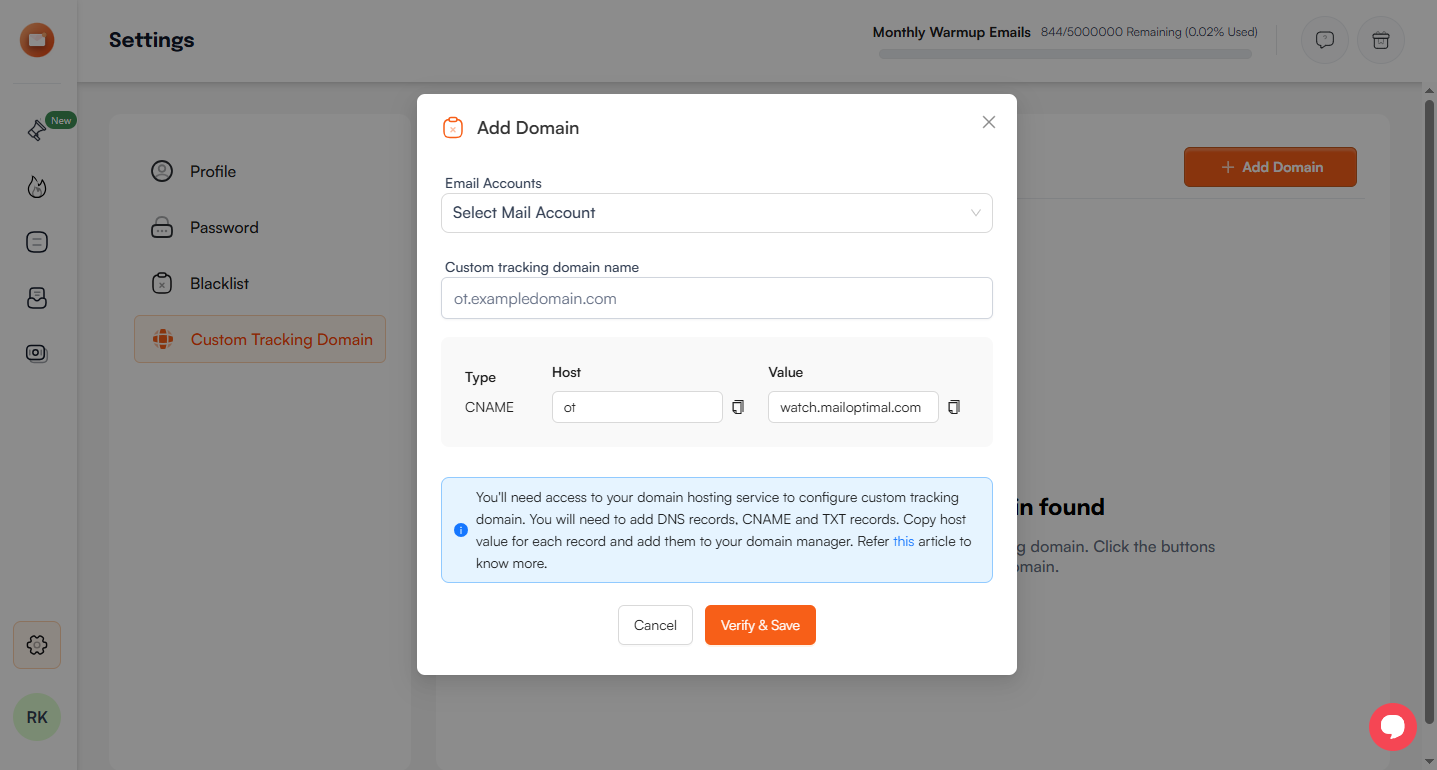
Visit your settings and click on "Custom Tracking Domain."
Next, click on the blue button "Add Custom Domain."
It would open a dialogue box, and from there, "select" the email account you want to set custom tracking for.
Next, insert the custom tracking domain created in the previous step, like go.mailoptimal.com.
MaiIOptimal will automatically trace the host.
All you need to do is to verify and save it.
Note: It may take up to 48 hours to propagate your CNAME record (usually, it’s propagated within a few minutes). Therefore, after setting your record in step 2, you can verify whether your DNS changes are updated.